Salon Operations
How to Choose Salon Management Software: Features, Costs and Checklist
Compare salon software using realistic booking tasks, a total-cost worksheet and a practical trial checklist for your team.
By Dhaval Prajapati · Published · Updated
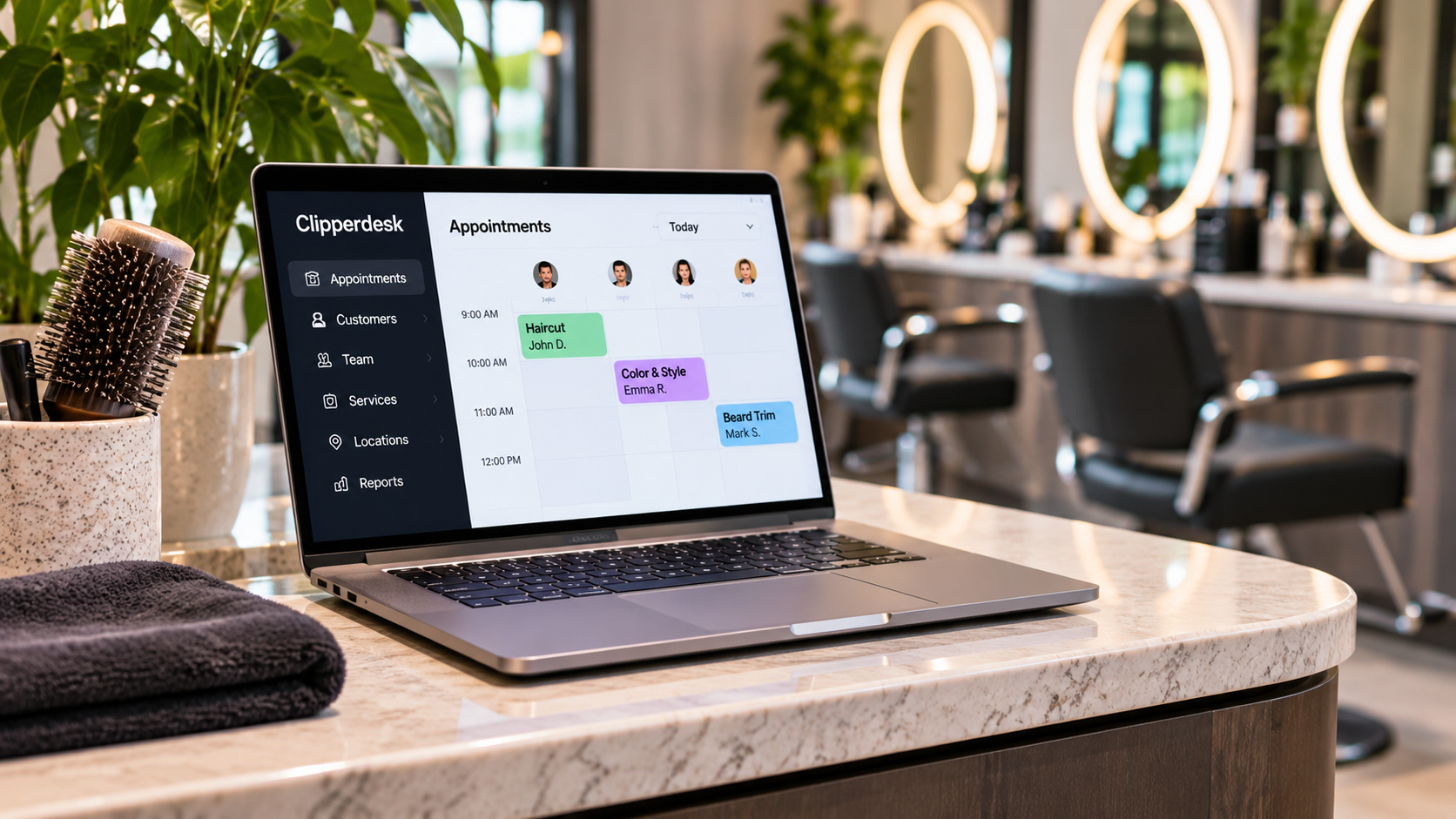
Choose salon management software by testing the work your team does every day: book a visit, change it safely, serve the client and complete checkout. A feature list helps you shortlist options, but the trial should show whether your receptionist, professionals and clients can actually use them.
About this guide: this buying checklist is published by ClipperDesk, a salon and barbershop software provider. It is not an independent ranking or a claim that we have tested every competing product. Product capabilities and costs should be checked before subscribing.
Start with the problems you need to solve
Write down three recent situations that cost your team time or confused a client. For example: two people booked the same professional, a walk-in delayed the next appointment, or reception could not find a client's service preferences.
Separate essential requirements from useful extras. Include your number of locations, the people who need calendar access, the services you offer and how you currently take payments. If a requirement is essential, an unavailable feature should not be hidden by a high overall score.
1. Test online booking from a client's phone
Can a new client understand the services, prices and durations?
Can they choose an eligible professional or another available team member?
Does availability respect working hours, breaks and existing bookings?
Does confirmation show the correct date, local time and location?
Can the client find clear instructions for changing or cancelling?
Try a normal booking and a time that should be unavailable. Then change the appointment from the front desk and check that public availability follows the saved change. ClipperDesk's online booking page explains its current workflow and limits.
2. Check staff schedules and walk-ins together
A useful calendar should show more than empty spaces. Test an absence, a break, a service that only one professional can provide, and a walk-in arriving before a booked appointment.
Trial task: give a professional a booking at 2:00 pm, then try to fit a 45-minute walk-in into the 1:30 pm gap. The system should not treat that gap as sufficient merely because the chair is currently empty.
Ask who can change schedules and how staff see changes. A receptionist and an owner may need different permissions. For the day-to-day process behind these tests, read our salon and barbershop operations guide.
3. Check realistic services and client history
Build a small menu using your real service types. Check duration, price, staff eligibility and any preparation or processing time you need. If you require multi-service visits or handoffs between professionals, test that exact journey.
Use fictional client details during a trial. Record a preference, complete a visit, and check whether an authorised team member can find the history. Also confirm that someone without the relevant permission cannot see sensitive notes.
ClipperDesk describes these workflows in its client management overview. A general client profile should not be assumed to provide specialist clinical records or healthcare compliance.
4. Distinguish payment recording from payment processing
Ask the provider to demonstrate each payment action you need. Recording that a card payment happened on an external terminal is different from charging that card inside the software.
How are partial payments, split payments and unpaid balances represented?
Does a receipt explain the services, taxes, discounts and payments?
Does a refund action move money or only record an adjustment?
Can you trace a report total back to its original sales?
If deposits are essential, can a client actually pay one and finish booking today?
In ClipperDesk, checkout records payments already received elsewhere; it does not charge cards or send provider refunds. Online deposit collection is currently unavailable, and deposit-required bookings need business contact. Confirm these limits fit your process before choosing the product.
5. Compare the total cost for your actual team
Ask for a written estimate using the same staff count, locations and expected usage for every option. Record the currency, tax treatment, billing period, renewal terms and cancellation conditions.
Base subscription and any staff or location charges.
Messaging allowances and usage charges.
Payment processing or marketplace fees, where applicable.
Setup, training and data transfer costs, if charged.
Paid features required for your essential workflows.
Fictional comparison: a $60 monthly subscription plus $20 in usage costs totals $80. A different system charging $25 per user for four users totals $100 before other charges. Neither figure is a ClipperDesk quote or an industry average. Compare the same required features before deciding which costs less.
For ClipperDesk, use the current pricing page and the price shown for your chosen configuration rather than a dated article price.
6. Check support, privacy and leaving the service
Before moving client records, read the provider's privacy and service terms. Ask how access is restricted, how corrections are handled, what exports include and what happens when you end a subscription. Do not assume that an advertised backup means you can restore every record yourself.
Test a normal support question and ask how urgent service problems are handled. For migration, use a small fictional sample first and compare record counts and field mappings. Only move actual client information after checking your business's responsibilities and the provider's process.
A trial scorecard your team can reuse
Booking: complete a booking on a phone and change it from reception.
Scheduling: test an absence, a break and an overlapping request.
Walk-ins: fit an unscheduled visit around the next reservation.
Client history: find a past visit and check permissions.
Checkout: record the payment workflow you actually use and inspect the receipt.
Reporting: explain one total using its underlying records.
For each task, record Pass, Needs help or Unavailable, along with what happened and who tested it. Have a receptionist and a service professional try their own tasks. Count repeated work and confusing steps, not just whether a feature exists.
Where ClipperDesk may fit
ClipperDesk brings online booking, calendar and walk-in work, client history and recorded checkout into one workspace. Explore the current feature overview and test your essential tasks. If automated marketing campaigns, memberships, packages, payroll or direct card charging are essential, do not assume they are included.
Common questions
What is the best salon software for a small salon?
The strongest fit is the one that passes your essential tasks at an acceptable total cost. Team size alone does not tell you whether a system supports your services and payment process.
Will new software reduce no-shows?
Software can support better booking and communication, but it cannot guarantee attendance. Use a clear process and measure results; our no-show reduction guide explains how.
Should I buy an annual subscription straight away?
First complete the trial tasks and read the billing and cancellation terms. Compare the commitment and flexibility as well as the displayed monthly equivalent.
A worksheet for your team
Salon software trial checklist
Try these tasks with fictional client details. Mark each Pass, Needs help or Unavailable. An essential unavailable feature should rule out an option.
1. Provider, trial date and team size
2. Phone booking and appointment changes
3. Staff absence, break and conflicting booking
4. Walk-in before a reserved appointment
5. Client history and access permissions
6. Recorded payment, receipt and report total
7. Full subscription cost, usage charges and exit terms
Blank working template · ClipperDesk · Adapt to your business. No entries are collected on this page.
Try the workflow with your team
See how ClipperDesk connects booking, staff schedules and client records. Check the fit with your services before choosing a subscription.
Published by ClipperDesk. Worked examples are illustrative unless identified otherwise; this guide does not claim independent product testing or guaranteed business results.